Finally the Iphone 4 hardware got hacked and is now open for everyone.
Apple used an 256-Bit key to encrypt any data stored on the phone, GPS-Data, Usernames and passwords, phonebook entries, messages, etc... and all other related user data that is stored on the phone.
This new revealed hack now allows us to do a Backup of an apple iphone 4 and also decrypt this backup to get the data out of this solid box.
As they claim Russian company ElcomSoft has done this hack first and created an easy to use software for everyone. ElcomSoft
An sheet here shows what is possible with the light and the full edition of this software:
ElcomSoft offer this iOS 4 forensic toolkit to security and law enforcement agencies, but anyone can purchase the software to extract the encrypted data on a device.
Rebug Team has brought 2 new realeases for the Sony s playstation 3:
Boot OtherOS++ & OtherOS Prep Tool
These are essential for installing an new OS on your playstation 3
Note: Below are excerpt from rebug.me Requirements:
16MB NOR PS3 (Model CECHH or Higher)
3.55 OtherOS++ enabled firmware installed
(If you want to use REBUG 3.55.1 grab PS3MFW Builder 0.2 Portable
from here with the tasks pre-selected to add OtherOS++ support) Features:
One Step Prep if installing OtherOS to USB Hard Disk
Two Step Prep if installing OtherOS to PS3 Hard Disk
Resize vflash to 6 different sizes
(Original, 11GB, 22,GB, 43GB, 65GB and 83GB)
Create or Delete vflash region 5, 6 and 7 separately
Create or Delete ALL vflash regions at once
dtbImage.ps3.bin included in pkg (no need to have it ready on USB)
Install different dtbImage.ps3.bin from USB
Checks that vflash region 7 create matches vflash size
Detects and displays current vflash size on start up
Auto matches new size to current size on start up
IMPORTANT NOTE: THE BLACK SCREEN IS NORMAL
In most cases when the PS3 auto reboots you will get a black screen telling you to plug in your controller and press the PS button. THIS IS NORMAL. Press the PS button and on the next screen press the PS button again. The PS3 will continue to reboot.
***************** IF INSTALLING LINUX TO USB HARD DRIVE:
STEP 1: COMPLETE VFLASH AND PETITBOOT INSTALLATION
(PS3 Hard Drive WILL NOT be Formatted)
Run OtherOS Prep Tool
Press START+SELECT.. You’re done!!
(PS3 will beep when it starts and again when it finishes)
(System will auto reboot)
Run Boot OtherOS++ to launch Petitboot
We are done folks, happy booting, and btw.:
If any body know the series breaking bad would know this already - i wanted to share ;) have fun
My Xbox 360 an very old Model of it, i bought it in July 2006, it was the first Model with an Heat Pipe and also the new Hitachi DVD Drive, this version doesnt tend to get overheated and destroy itself :D so it runs and runs and runs till now.
The only Problem im facing right now is, my console needs around 15 Minutes to get warm before i can play any game. This means i insert an DVD and then i sit and press the A-Button on my wireless controller to let the drive eject and close again, yeah around 50 Times then it starts Reading the DVD and voila game is up and running.
After this treatment every game runs within the first 3 Tries the whole day, till i let my XBOX cool down around an hour or so.
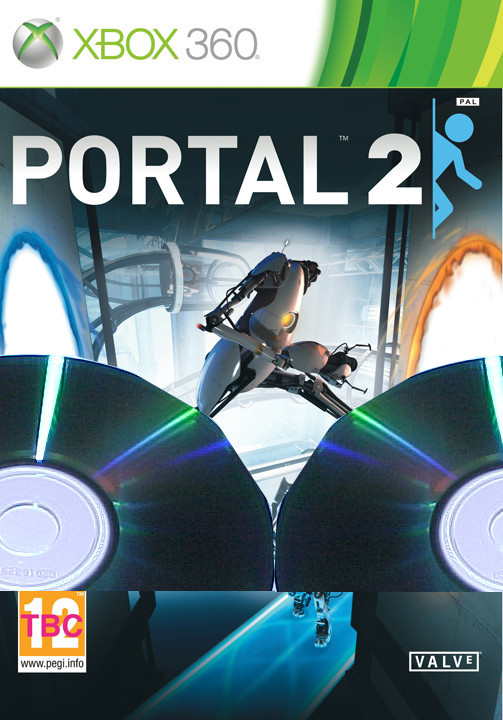
Yesterday i thought PORTAL II is available for 360 and i thought, i must have it! Go and Buy!
But the Problem, Sunday no store got opened for me, so a called a friend of mine and i knew he bought it alredy ;) so i started over to him and asked if i can borrow the game.
Answer was no, cause he told me i never take care of this game and he newly bought it and dont want it to get wasted to fast by a person like mine. Uhm alright i said. Lets ->
So i flushed out of my pants an fresh Verbatim Dual DVD Layer brute and told hmi okay let me do a Backup and i take both games with me at home but i only will play the backup so your game will not be harmed!
about an hour later i got a fresh Backup and an Original of Portal II
Back home i tried to play the Backup - but then - my XBOX told me DVD Video ready to play.
I clicked Play a thousand times but it wasnt able to play that game, so i backed the original Up again and again and an fourth time again. And i wasnt able to figure out why it wouldnt work...
I backup the game using IMGBURN in Windows, but no Luck.
I Used the Force of Luke with Linux but nothing else happened.
My last try was an APPLE Mac with OSX 10.3, no way to get an DUAL LAYER BREAK at the Point given for XBOX 360 games, so an OSX user would never have the chance to burn an 360 game in any way. I loughed myself a bit in this sad situation when the apple users began to talk about VDPC with WIN and DARWIN :)
Long Story short.
I lastly figured out why the game would not work on my console... So i have to tell you if you got the same Problem... Download this file here Activate_iso.rar and burn it like you would burn any game for Microsoft X360 i prefered IMG BURN on windows, cause there are some Special settings that should be done ...
After burning this 250 MB Image to an dual layer dvd you can insert it into your Xbox 360 and let it loud about 1 Minute after that put your Backupped game into your DVD Drive and voila :D it would load the game, no need of burning it 4 or 5 times ;)
use this settings for IMGBURN:
if you didnt got it right now and need further infos, i please you continue reading here -> WELL DONE
very well written article and some additional infos more than are written here, for trouble shooting you can also ask.
So i bought mysel an Nokia N900 about an year ago :)
I think it's the best phone on this Planet! It barely never died und the Software Repository for it is great and free for all, no buying anywhere, cause it is an 100% open source Software running on this Piece of fantastic Technique!
Here just take a look at this!
HAH an too one of the greatest videos ever be done for an Phone :) nice try from Nokia!
Now to hack a and free an Play Station 3 from Sony entertainment system you obnly have to install some Open source apps on your Phone!
Disclaimers:
- Use at your own risk. (Although I can't think of anything bad that might happen)
- No Piracy tolerated. This should be used to Backup your precious bought games only.
- It is unknown what short term or long term effects this will have on online play, if at all.
This guide covers the matter in extensive detail. So even if you’ve never ventured with your N900 before, you’ll still be able to follow.
This guide will cause Pro users to bleed from their eyes
This guide will cover Jailbreaking your PS3 with the N900 using PSFreedom and installing and running the PSJailbreak Backup Manager(Working!!).
PSFreedom WAS NOT MADE BY ME.
Give thanks to the Maker KaKaRoto: kakaroto.homelinux.net
Hardware you will need:
N900 (Should now work on Power and Regular Kernel)
PS3 with firmware 3.41 (I haven't tested on older)
PSFreedom Application Method - GUI:
Enable Extras-Devel Repository on your N900:
Application manager –> Application catalogs –> New
Catalog name: Maemo Extras-devel
Web address: http://repository.maemo.org/extras-devel/
Distribution: fremantle
Components: free non-free
Let it update the catalogues. Then choose Download and find PSFreedom. Install it.
Make sure your N900 is connected to same WiFi as your PC.
Identify your N900s IP address . (You can find a nice widget for this HERE )
Launch WinSCP:
Hostname: IP of the N900 (Example: 192.168.1.5)
Port: 22
Click login.
You’ll be promted for username and password. The username is root and the password is what you’ve entered earlier.
WinSCP will take you to the browsing panes.
Left Pane is your PC. Right Pane is your N900.
Identify which Kernel do you have on your N900:
In N900 Terminal Type:
Code:
uname -r
If it says something with "power" in it. It's Power.
2.6.28-omap1 is Regular
Back to WinSCP:
Browse to and Copy (F5) the 3 PSFreedom files from your PC to your N900s /root folder
(You will get no output for these commands)
Now run the script:
Code:
./psfreedom-enable.sh
(Nothing should happen, if you get an error: unable to insert “-”, you are running power kernel, you need to be running stock kernel or use the Power Kernel Driver) Using PSFreedom on Your PS3:
Now. Unplug your ps3 from Power.
Connect then N900.
Plug back your PS3s power.
Click the Power button then quickly click and hold the Eject button (for maybe 7 seconds, if you hear 1 beep, let go).
How do you know you did it fast enough?
You won’t hear 2 beeps when you first hit the eject button. I prefer using both my hands
Nothing will seem to be happening. That’s fine. The n900 will show the Storage or PC Suite window. Then a warning about insufficient power.
How do you know it worked?
On the ps3, there should be a new option, under Game called: Install Packages.
Backup Manager:
You can get the Original Backup Manager from here: http://www.pandawillforum.com/redire...&goto=lastpost
There is also a "Stealth" Backup Manager if you'd like to Try. (Although its effectiveness is questionable) (Read about it Here): http://www.ps3-hacks.com/file/86
Put the manager.pkg into the root of a separate storage media (USB Drive or HDD) other than N900. Plug that USB in the PS3. After that, you will see the package manager under *install packages files* on your PS3. Choose to install it.
Launch the Backup Manager which is now under Game. Preferably with a game inside your PS3
Note: You have to have an original game (Any) inserted to load a backup at all times.